
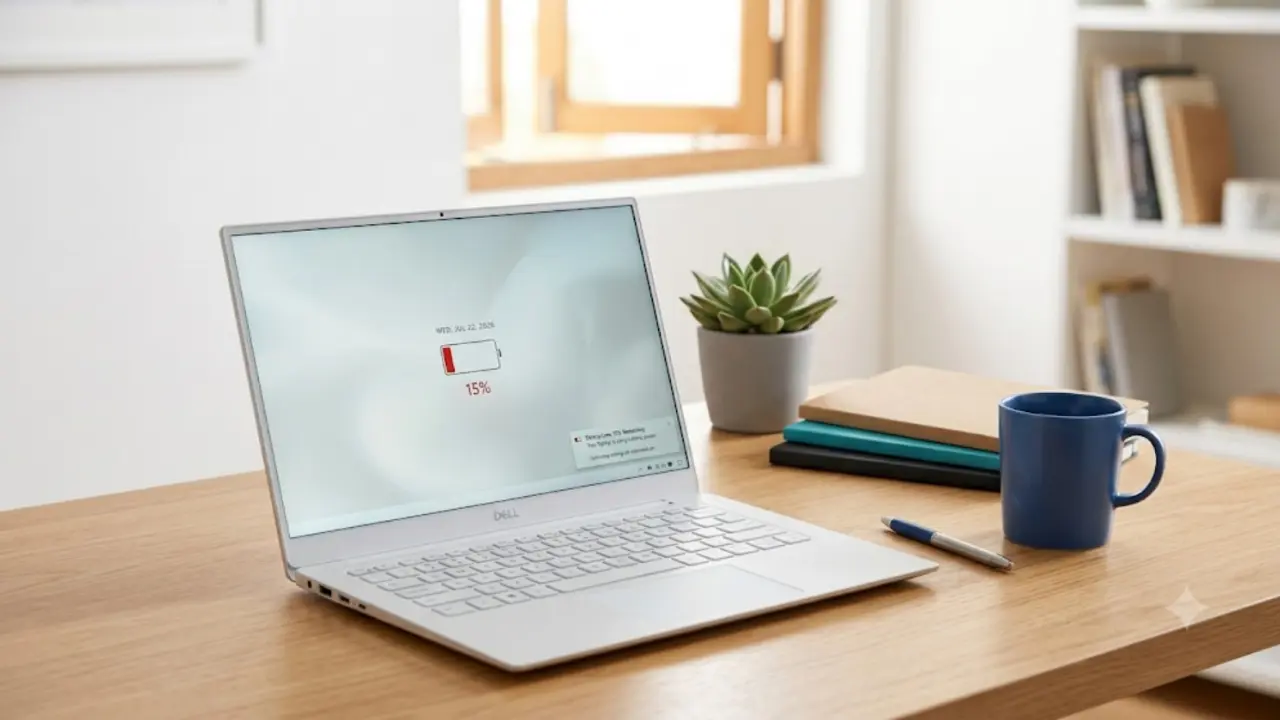
laptop battery draining fast
You have likely wondered why your laptop battery drains faster than usual, even when you use the device infrequently—perhaps just once every few days, for specific tasks, or for only half an hour to an hour a day.
You are not alone in facing this issue; many users encounter rapid battery drainage due to features like high-performance hardware, vibrant displays, and constant connectivity. Poor battery life significantly impacts productivity and causes unnecessary frustration—whether you are a student attending online classes, a professional working while traveling, or a corporate employee.
How a laptop battery works
First, it is important to understand how a laptop battery works; this will help you grasp why the battery drains rapidly. Modern laptops typically use Lithium-ion or Lithium-polymer batteries. These batteries convert chemical energy into electrical energy; inside the battery, there are small cells where lithium ions move from one end to the other.
These are the most common types of batteries used in modern computers. In other words:
During charging—when you connect the laptop to the charger—electrical energy from the charger drives the lithium ions to move from the battery’s cathode to the anode. This process stores energy within the battery.
During discharging—when you unplug the charger and use the laptop—these lithium ions move back from the anode to the cathode. As they do so, electrons flow through an external circuit, generating an electric current that powers the laptop.
Common reasons for laptop batteries draining quickly
It is incredibly frustrating when you are working on your laptop and the battery suddenly starts draining rapidly—especially when you haven’t been doing anything particularly intensive. The truth is, we often overlook small mistakes that cause the battery to deplete quickly. Understanding these issues can help you take the right steps to fix the problem and extend your laptop’s battery life.
While checking the status of your laptop battery is easy, identifying the root cause of rapid drainage might require a bit more effort.
from 4 to 10 hours on a full charge, though this depends heavily on how the laptop is used. However, if you have noticed that your battery is draining much faster than it used to, here are some common reasons why
1.High screen brightness and display settings
The display is often one of the biggest power consumers on a laptop; consequently, running it at high brightness can significantly reduce battery life. Features like backlit keyboards, high-refresh-rate screens, and vivid color settings also increase the power load—the brighter and sharper the visuals, the more energy your laptop requires to operate.
2. High-performance components
Most modern laptops contain several components that consume significantly more power than standard devices. Since they use more power, they will drain your battery much faster.These modern laptops almost always feature performance adjustment settings. If you consistently use high-performance settings, your battery will deplete very quickly.
3.Turn on Battery Saver Mode.
Enabling Battery Saver mode in your laptop’s settings will extend battery life; to do this, navigate to Windows Settings > System > Power & Battery and turn on Battery Saver mode. Additionally, set the ‘Power Mode’ to ‘Best Power Efficiency’.
Disable Fast Startup (A sure-fire fix for battery drain when the laptop is shut down)
Sometimes you completely shut down your laptop, but when you turn it on the next day, the battery is 10% to 20% less. The main reason for this is the Fast Startup (Hybrid Shutdown) feature in Windows 10 and 11.Instead of completely shutting down your laptop, this feature saves the state of the system kernel and drivers to your hard disk or SSD, which continues to consume very little power in the background. So, turn it off.
Optimize battery using brand-specific apps and BIOS settings.
Laptops from various companies are available worldwide, and manufacturers like HP, Dell, and Lenovo equip their devices with their own proprietary ‘Power Management’ software and BIOS settings. If you only adjust the Windows settings while ignoring these applications, the battery drain issue will not be fully resolved.